

I've actually taken this class before, but since it was over 10 years ago, I have to take it again. I'm happy for that though, because there have been tons of advances to the internet and Microsoft programs since then.
I actually already have a family blog through blogger, so feel free to check it out if you'd like: click here
For those of you new to blogging, my advice would be to explore and not be afraid to try different things. Never forget to use the spell check before you publish your blog, and don't count on the autosave feature! Also, it's fun to add pictures to your blog posts.

To do this, click the little scenery picture located next to the spellcheck button. A box will pop up where you can browse your files to find the picture you want to upload. You can add additional photos so you can upload more than one at a time. You can also chose if you want your picture size small, medium, or large, and if it is aligned on the left, center, or right side of the page. I have found difficulty when I put pictures on the left and right sides, just because the text doesn't always align correctly and sometimes the words are cut off in the middle and taken down to the next line. I always just upload my pictures positioned in the center of the post.
Also, sometimes depending on your computer's speed and picture size, uploading pictures can take quite some time. While they are uploading in the pop-up box, you can come back to your post and continue typing. Once they are uploaded, they will be added to the top of the page where you are typing and then you can highlight and move them where you would like them in the post.
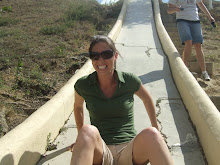
One last tip about uploading pictures is that it is nice if you have an extra line between your previous text, the picture, and your following text. It is okay if you do not have this extra space, but the text will be positioned directly on top of the photo possibly making it a little more difficult to read, like so:
 In my opinion, it just makes it easier to read with a space in between the text and photo. =) Also, this space makes it much easier to edit your post if need be because it is more organized while editing.
Finally, you can preview your post before you publish it to make sure you are happy with how it looks. This is helpful in making sure you have the correct pictures right where you want them too!
Since I have set up a blog using this site before, the experience was not difficult. However, I have never used slideshare before, so I'm sure that will take a little time to get used to since it is a new experience! I look forward to checking out the blogs of my classmates in hopes that maybe there is someone that can give me a tip on how to upload pictures aligned to the right or left side without affecting the text!
Thank you for reading and I hope you found some helpful tips!



 Posts
Posts


I like your family photo. I also agree with your comment about using spellcheck. I am a terrable speller and will need to constantly remind myself to use the spell check. Good job.
ReplyDeleteI really like your blog it shows us who you are. It is really detailed and the help you gave us is really helpful.
ReplyDeleteI love your blog! It is so cool to see so many pictures of you and your family! You guys look like you have a lot of fun together! Also, thank you for including detailed information on how to incorporate those pictures! I think I will try it out for myself and if I have any questions I will be sure to check with you! I find it very cool that you are going back to school! Good luck with everything and if you ever have any questions be sure to ask! I would love to try and help you out!
ReplyDeleteI love your blog! You have a beautiful family! I really enjoyed your Power Point. The colors and background were really great! I appreciate your tips about adding picturs to the blog. This advice was very helpful when I was creating my own blog! ...Thanks for your nice comments on my blog! :) I took your advice and changed the main text color. Thanks for the tip! Oh, I found the extra gadgets (fish, tree, etc.) by going to "customize", then "page elements", then "add a gadget", then "more gadgets"(found in upper, left corner). I hope this helps. Let me know if you need better directions. :)
ReplyDeleteYour blog is wonderful. You're a very bright person that seems to have alot on your plate. I love how your such a family person because that shows that you're a loving person. Your family is very lucky to have a person that cares so much. Well good luck this semester i hope you do well and let me know if i can ever help.
ReplyDelete